
Microsoft IIS 6 SSL Installation Instructions
SSL Certificate Installation in IIS 6 is very simple. You will just need to go through the IIS wizards that guide you through creating a CSR and Installing the certificate to the chosen web site.
Install The Primary Server Certificate
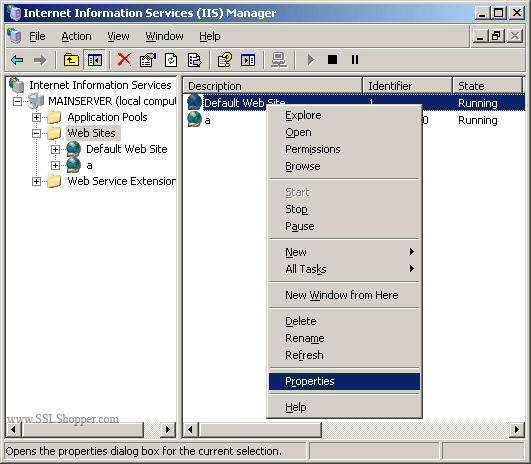
- In Windows, go to the Administrative Tools, and Open the Internet Information Services (IIS) Manager.
- Right Click on the Default Website and select Properties.
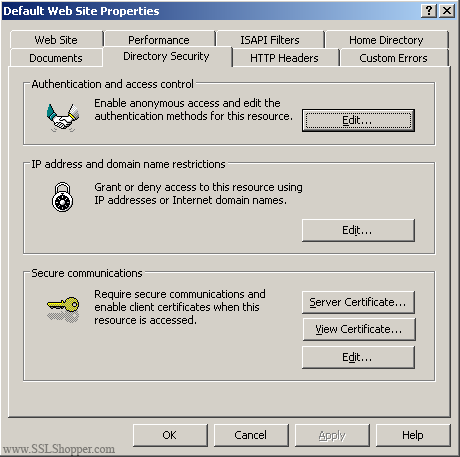
- Go to the Directory Security tab. Click on the Server Certificate button. This will start the certificate wizard. Click Next.
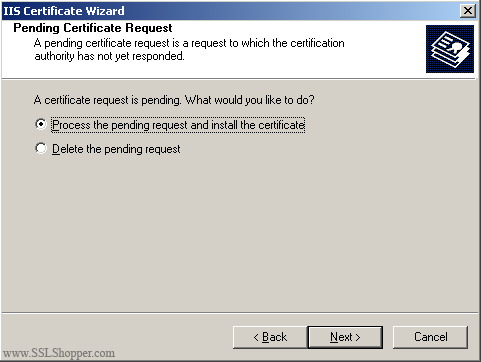
- Select Process the pending request and install the certificate and click Next.
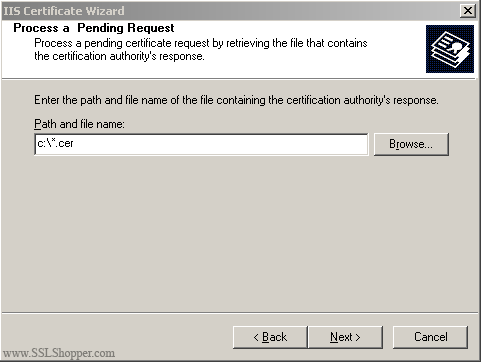
- Click Browse and find the SSL certificate file that you download from your certificate authority. If the file type is not a .cer, make sure to view all file types. Click Next. Finish the rest of the wizard.
Install the Intermediate Certificate
- If your certifiate authority provided an intermediate certificate you will need to install it as well. Download the intermediate certificate to a folder on the server.
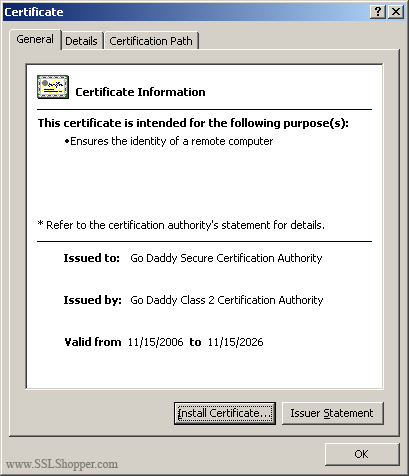
- Double click the certificate to open the certificate details.
- At the bottom of the General tab, click the Install Certificate button to start the certificate import wizard. Click Next.
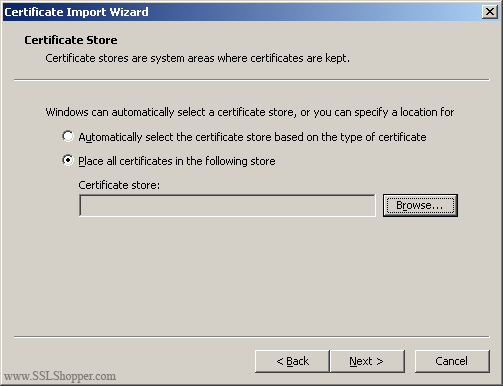
- Select Place all certificates in the following store and click Browse.
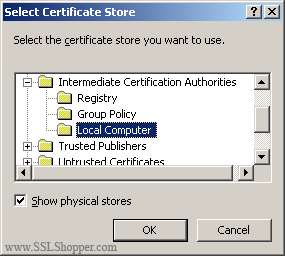
- Check the Show physical stores checkbox, then expand the Intermediate Certification Authorities folder, select the Local Computer folder beneath it. Click OK. Click Next, then Finish to finish installing the intermediate certificate.
Now just restart IIS to finish installation of the SSL certificate. At this point, it would also be a good idea to backup the certificate with the private key.

Comments