
cPanel SSL Installation Instructions
Different versions of cPanel have different SSL installation procedures. These cPanel SSL installation instructions should work with versions close to cPanel 7.0.
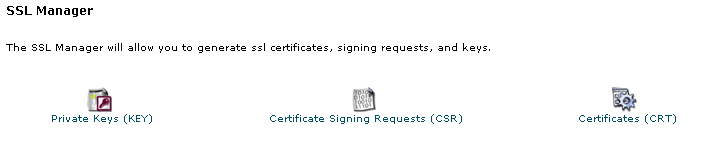
- Login to cPanel and click on the SSL Manager.

- Click on the icon above Certificates (CRT).
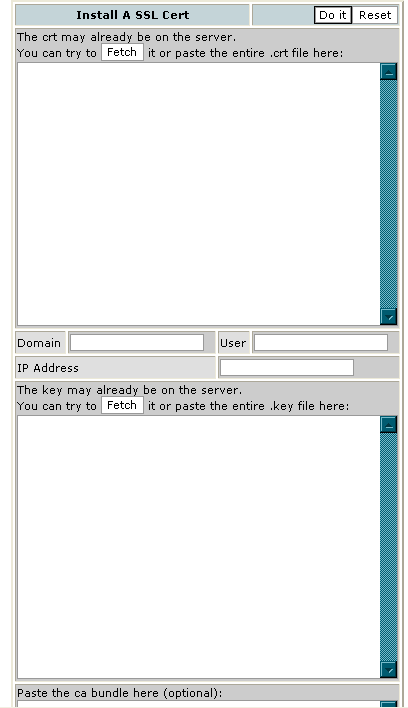
- In the first box paste the contents of your Primary Certificate that you downloaded from your certificate authority. Include the BEGIN and END tags.
- Fill in the required Domain / User / IP address information. The domain and IP address may fill in automatically.
- In the middle box paste the correct private key that was generated with the CSR. The private key may fill in automatically if the server recognizes your Certificate or when you click fetch. Otherwise, you will need to paste it in.
- In the bottom box paste the contents of the Intermediate Certificate, if your certificate authority provided one.
- Press the "Do it" button.
If you get the message that the HTTP has failed to start, you will need to remove the installed certificate and start over or install the certificate directly in Apache. If you do not have access to the Apache configuration file, contact your hosting. Otherwise you can follow the Apache Installation instructions.

Comments