
How to set up OpenSSH on Windows
Rob Bruder from Broadband Antenna Tracking Systems shared the steps that he followed to install OpenSSH with FIPS compliant OpenSSL using CYGWIN on a Windows XP machine:
- Download Cygwin/x from http://cygwin.com/
- Install it making sure to install the following packages
- Make
- g++ compiler
- Zlib
- Cygrunsrv
- perl
- Download the OpenSSH Tarball file form www.openssh.org
- Unpackage the OpenSSH tarball to your /cygwin/usr/local.
- Download the OpenSSL Fips 140-2 Tarball file from www.openssl.org
- Unpackage the open OpenSSL tarball to your /cygwin/usr/local directory
- Add Cygwin/Bin Directory to Environment Variables
- Run cygwin
- Navigate to the Open SSL directory by running
- cd usr/local/openSSL
- Configure the OpenSSL project
- ./configure BSD-generic32 fipscanisterbuild
- Make the OpenSSL Install
- make install
- Navigate to the Open SSH Directory
- cd /usr
- cd /local
- cd /openSSH
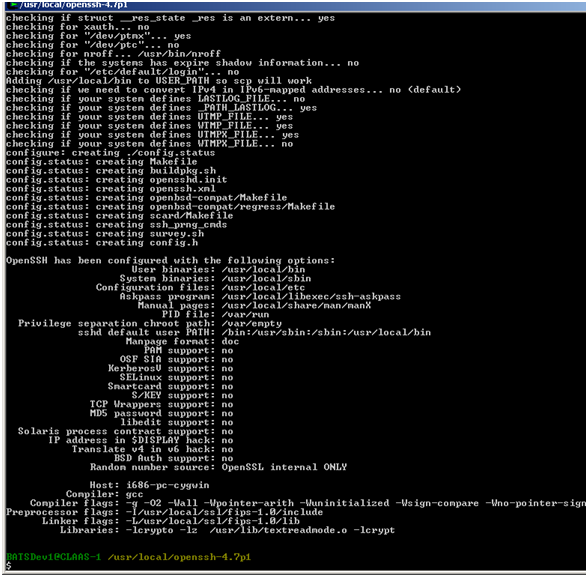
- Configure the OpenSSH project
- ./configure –with-ssl-dir=/usr/local/ssl/fips-1.0
- Register the SSH Service
- cygrunsrv --install sshd --path '/usr/local/sbin/sshd' --env 'PATH=/bin;/sbin' --env 'CYGWIN=ntsec tty' -a -D
- Configure User Accounts
- To create a cygwin user create a user in windows then execute mkpasswd –l >/etc/passwd from the bash command line IIRC.
- mkdir /var/empty
- chown SYSTEM /var/empty
- chmod 755 /var/empty
755 means read and execute access for everyone and also write access for the owner of the file
- groupadd sshd
- useradd -g sshd -c 'sshd privsep' -d /var/empty -s /bin/false sshd
- Make the OpenSSH Install
- make install
Originally posted on Sat Apr 3, 2010

Comments